Payment Options
Select a payment option below for more information.
Recharge
This can be done when you are paying another campus department. Please note that ASUCLA (UCLA Store) is not considered a campus department.
Please email the quote to the finance team at finance@orl.ucla.edu if you'd like to use a recharge.
Purchase Orders
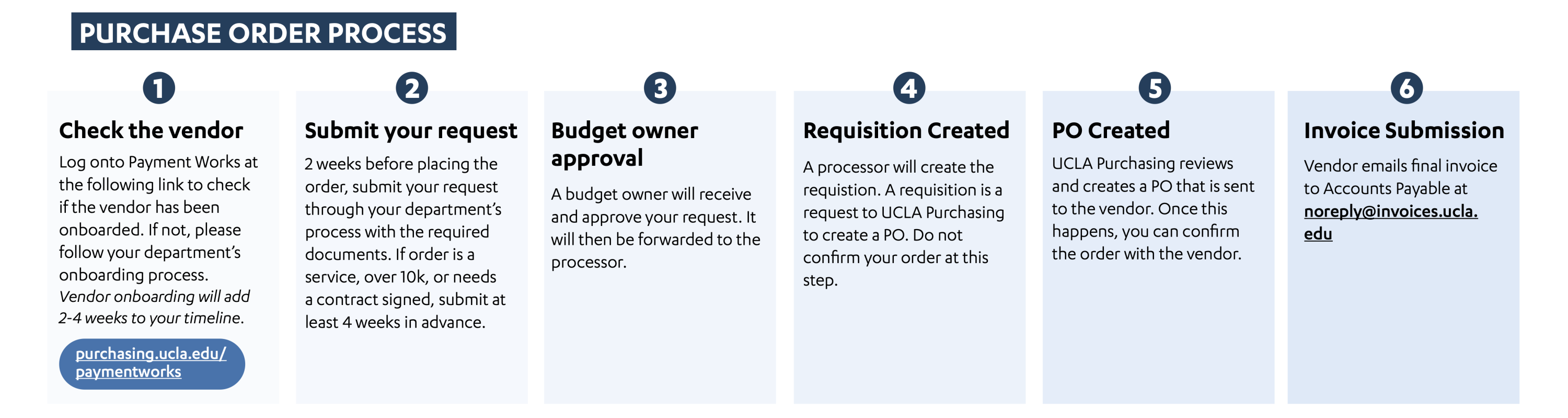
A Purchase Order (PO) is needed to pay for either goods or services when using a registered University vendor. It is a legal document between the University and vendor establishing authorized terms and conditions that agree to pay for goods or services.
Important
- Requests need to be submitted 2 weeks prior to the event or placing the order.
- Services, purchases requiring a signed contract, high-value orders (orders over $10K), etc. must go through Purchasing. The request must be turned in at least 4 weeks prior to the services being needed.
- Do not confirm or promise the vendor that anything has been purchased or booked until the PO has been received by the vendor. The PO is the guarantee of payment; requisitions are not the same!
- If you are purchasing software or any program/app where demographic information of students or staff will be entered, the vendor must be approved through Third-Party Risk Management (TPRM), an evaluation completed by SAIT and IT Services prior to submitting a request. Note this process can take months.
Required Documents
- All purchase orders require
- Quote/Statement of Work (SOW)- This is not the same as an invoice. An invoice is submitted after the event or items are received.
- Business Justification
- Travel and Entertainment POs require:
- Agenda/Flyer
- Attendee/RSVP List- Must include first and last name, title, university affiliation, be numbered, and be in PDF format. Can be submitted after the event.
- Entertainment worksheet- Found on UCLA Travel website. Click here to redirect to UCLA Travel website forms
- Incentive purchases require:
- Winner Names and UID- Can be submitted after
- If ordering swag:
- Attach artwork and licencing approval to UCLA Trademarks and Licensing- Click here for the form to request use of UCLA marks
How to Check if a Vendor is Registered
- Go to our Purchasing & Accounts Payable website. Click here to redirect to the Purchasing & Accounts Payable website
- Click "PaymentWorks Login".
- Click "Vendor Master Updates".
- In the dropdown menu, select "Onboard Tracker".
- Search for the vendor using the search function. If you can't find them, they are not a registered vendor.
Status Definitions
- Invitation Initiated: UCLA has sent them an invitation.
- Email Verified-Invitation Received: They received the invitation but haven’t opened it yet.
- Invitation Link Clicked: They have opened the invitation.
- Registration in Progress: They started filling it out.
- Registration Submitted: Pending Internal review
- Registration Returned-pending resubmission: Vendor needs to resubmit
- Registration Approved
- Onboarding Complete
T&E Card/Out of Pocket (Travel and Entertainment)
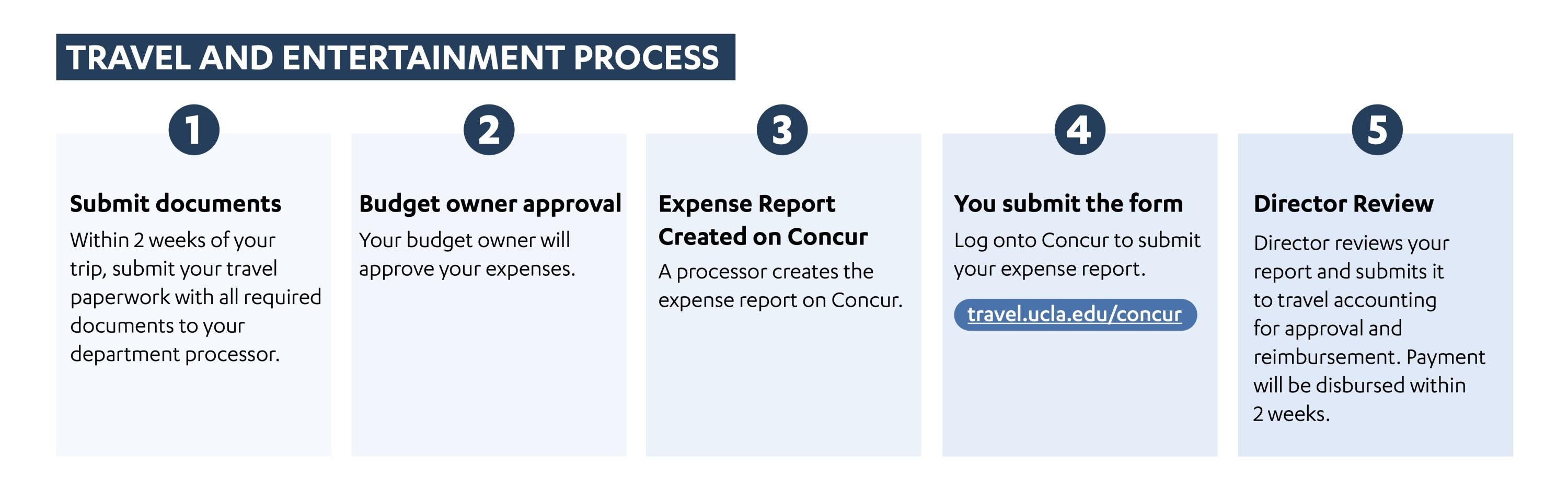
Access the T&E/Out-of-Pocket Reimbursement Form by clicking the link below:
Find more information on how to get a T&E Card in the section on the "Other Processes" page under the heading "How to Get a T&E Card".
Required Documents
- Agenda/Flyer
- Attendee List: as a PDF, numbered, with UCLA Affiliation
- Itemized Receipts with business name and proof of payment
Click to see a Sample Attendee List and Agenda
Out of Pocket Reimbursement (Non-Travel)
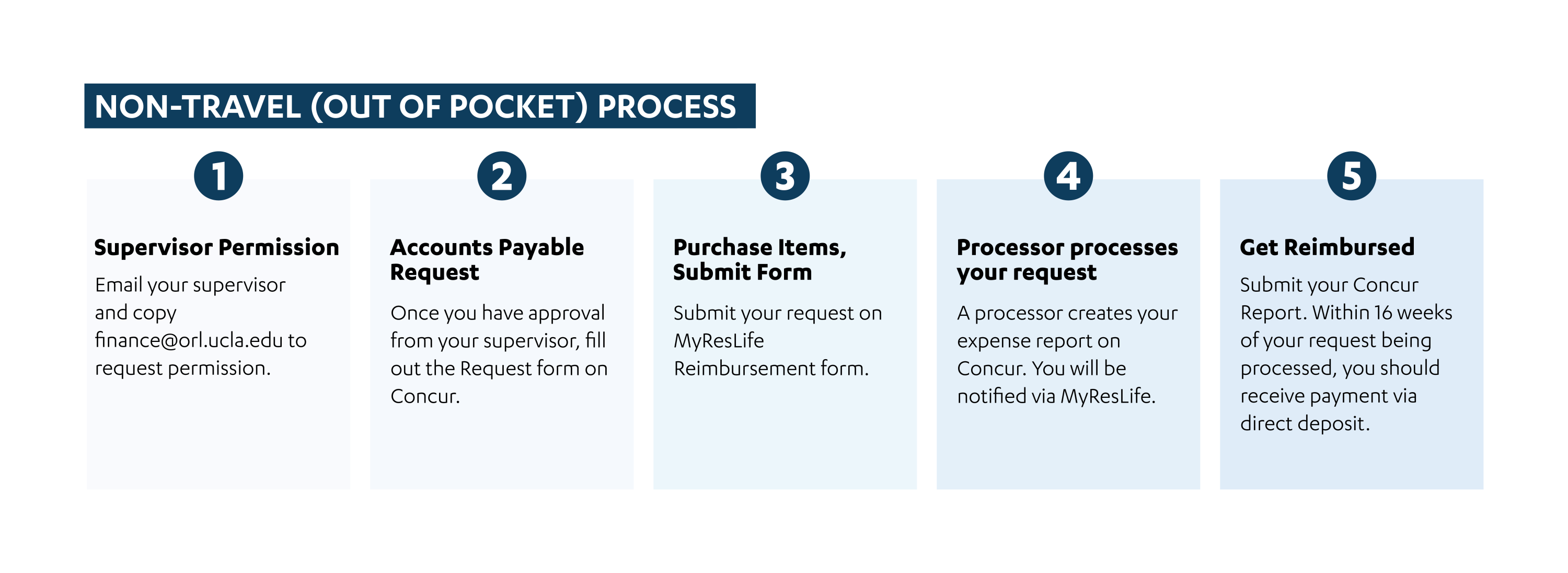
You must get prior approval to use this process. Note that reimbursements for Non-Travel takes up to 16 weeks to be reimbursed.
Pcard
You may request to use the Pcard for things that are not Travel and Entertainment with a few exceptions like software and services.
Pcard Process
If an item can not be purchased through a registered vendor, you can request for it to be purchased via a Pcard. The instructions are below. Please note that anything that qualifies as travel and entertainment and services can not be purchased via a Pcard.
Fill out the Purchasing Request form at least one week prior to needing the item to be ordered. Click here to redirect to the Purchasing Request Form
-
You will get an email confirmation once the item has been purchased.
-
Once the item arrives, you will get an email to pick it up in Bradley 205.
Direct Bill/Concur
Concur Definitions
Delegate: This is the processor that will create your expense reports for you. You must add them as a delegate for them to create reports for you.
Expense Report: This is the report created for your trip. The processor will add all the expenses associated with the trip and create the expense report.
Processes
Booking your Flight Through Concur using Direct Bill:
- Please email Finance@orl.ucla.edu to assist you in booking a flight through Concur
Booking your Car Rental/Hotel through Concur:
-
Car Rentals and Hotels can be booked through Concur but you will need to pay via personal funds or T&E card.